Most robots.txt advice for AI crawlers starts in the wrong place. It jumps straight to which user-agents to allow or block before addressing a more fundamental question: is your robots.txt file even being read?
robots.txt is a signal, not a lock. Crawlers are not required to obey it. Host-level blocks — covered in depth in Day 4 of this series — fire before robots.txt is ever read, meaning a perfect robots.txt file can be completely irrelevant if something upstream is returning 403 or 429 responses to AI crawlers first. Google’s own documentation warns that a Disallowed URL can still appear in search results if linked from elsewhere. For AI crawlers with lower compliance rates than traditional search bots, the reliability gap is even larger. The curl-based check from Day 4 confirms whether crawlers can actually reach your site at all — run that first, then return here to optimize what they see when they arrive.
This article covers the full technical picture: the three categories of AI crawlers and why they require different decisions, every major crawler’s user-agent string, how WordPress’s virtual robots.txt works and what breaks it, what each directive actually does, and the complete annotated template you can paste into your WordPress SEO plugin today.
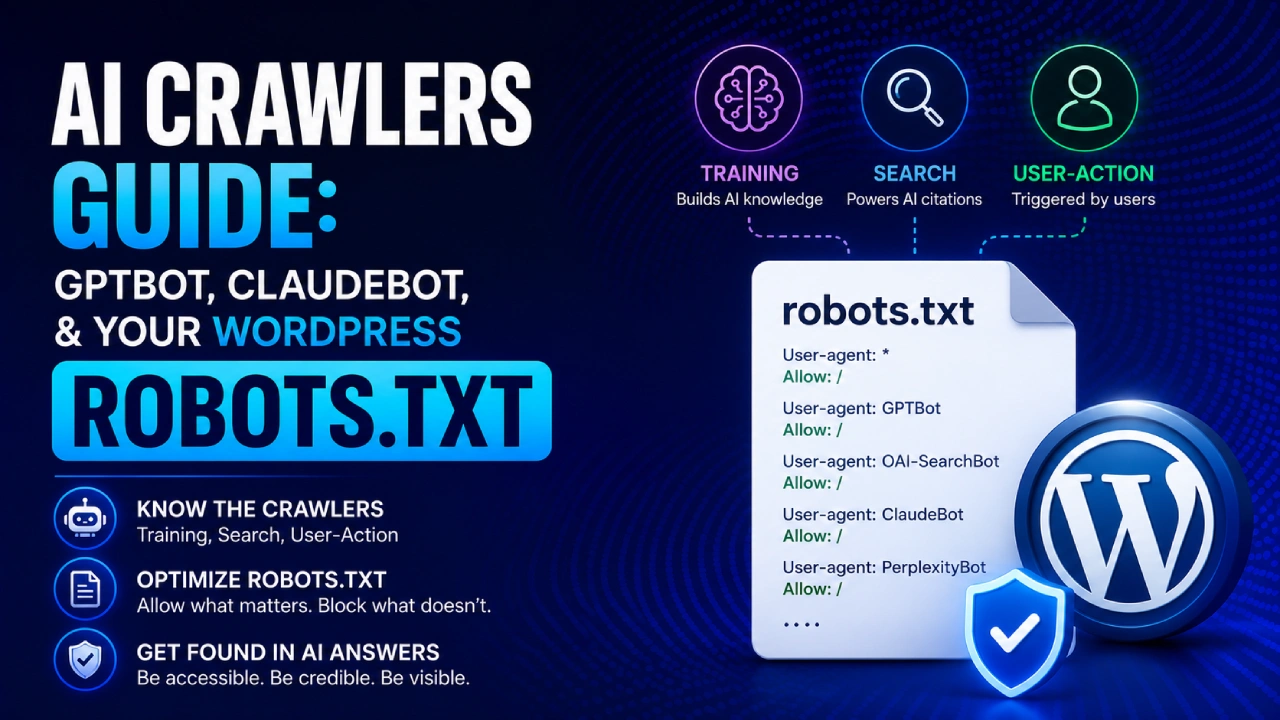
The Three Categories of AI Crawlers — Why the Framing Matters
“AI crawlers” is not one thing. There are at least three functionally different types operating under different user-agent strings, doing different jobs, and behaving differently toward robots.txt — and the most common mistake WordPress site owners make is treating them all the same.
Understanding the difference isn’t just technical housekeeping. Each category involves a different decision with different consequences:
Training crawlers — These build the model’s underlying knowledge. When GPTBot or ClaudeBot crawls your site, your content potentially becomes part of the training data that shapes future model responses. The key word is “potentially” — training pipelines are not fully transparent. Allowing these crawlers is a consent decision: you’re comfortable with your content being incorporated into model weights. Blocking them is an opt-out: you prefer your content not be used this way. Either choice is legitimate. Critically: blocking training crawlers does not make your site invisible in AI search results. That’s a different category of crawler entirely.
Search/retrieval crawlers — These power real-time AI search citations. When a user asks ChatGPT a question and it runs a web search behind the scenes, OAI-SearchBot is what retrieves your page to include in the answer. Same for Claude-SearchBot powering Claude’s search, and PerplexityBot powering Perplexity’s answers. Blocking these crawlers directly removes your site from consideration for AI-generated citations. This is the category that matters most for GEO visibility, and it’s the one most accidentally blocked when site owners try to block “AI” broadly without distinguishing between types.
User-action crawlers — These fire during a live conversation when a user explicitly asks an AI to visit a specific link. ChatGPT-User is invoked when a person pastes a URL into ChatGPT and asks it to read the page. Claude-User and Perplexity-User behave similarly. Blocking these is functionally equivalent to blocking a human visitor who clicked a link — the user asked the AI to go somewhere specific, and your site refused the request. These crawlers also tend to be more compliant with robots.txt than training crawlers, but that’s a secondary consideration: the primary reason to allow them is that they represent genuine user-initiated interest in your content.
The trap is predictable: a site owner reads a post about AI scraping and adds a blanket robots.txt block for anything with “AI,” “GPT,” “Claude,” or “Perplexity” in the user-agent. The training crawlers are blocked — which may or may not be the intended outcome — but the search and user-action crawlers are blocked too, and the site silently disappears from AI answer consideration. No error, no notification, just absence.
Complete AI Crawler Reference Table
| Crawler | Category | Owner | User-Agent String | GEO-Focused Stance |
|---|---|---|---|---|
| GPTBot | Training | OpenAI | GPTBot | Your call — allow for brand presence in future models, block to opt out of training |
| OAI-SearchBot | Search/Retrieval | OpenAI | OAI-SearchBot | Always allow — this powers ChatGPT Search citations |
| ChatGPT-User | User-action | OpenAI | ChatGPT-User | Always allow — fires when a human asks ChatGPT to read a link |
| ClaudeBot | Training | Anthropic | ClaudeBot | Your call — same decision as GPTBot |
| Claude-SearchBot | Search/Retrieval | Anthropic | Claude-SearchBot | Always allow — powers Claude’s search/retrieval |
| Claude-User | User-action | Anthropic | Claude-User | Always allow — fires when a human asks Claude to read a link |
| anthropic-ai | Training (older) | Anthropic | anthropic-ai | Allow — older user-agent, still encountered in logs |
| PerplexityBot | Search/Retrieval | Perplexity | PerplexityBot | Always allow — powers Perplexity answers |
| Perplexity-User | User-action | Perplexity | Perplexity-User | Always allow |
| Google-Extended | Training | Google-Extended | Your call — separate from Googlebot; controls AI training data use | |
| GoogleOther | Various | GoogleOther | Allow — miscellaneous Google crawling | |
| Gemini-Deep-Research | Research/Agent | Gemini-Deep-Research | Allow — user-initiated deep research queries | |
| Bingbot | Search + AI | Microsoft | Bingbot | Always allow — feeds both Bing search and Copilot |
| CCBot | Training | Common Crawl | CCBot | Block — low-value training crawler, no search citations, high volume |
| Bytespider | Scraping/Training | ByteDance | Bytespider | Block — high volume, not linked to any user-facing AI citation product |
How to verify a user-agent string: Each major AI company publishes their official crawler user-agents in their documentation. OpenAI’s GPTBot documentation, Anthropic’s ClaudeBot documentation, and Perplexity’s bot documentation are the primary sources. When in doubt, check the official documentation rather than third-party lists, since user-agents occasionally change and unofficial lists can lag.
The Physical vs. Virtual robots.txt Conflict in WordPress
WordPress has a quirk that trips up many site owners and makes their robots.txt edits in SEO plugins have no effect: WordPress generates a virtual robots.txt file dynamically when no physical file exists at your site root. This is normal and intentional — it means you have a functional robots.txt even without creating one manually.
The problem arises when a physical robots.txt file exists at your site root (the same directory as wp-config.php). When a physical file exists, it takes complete precedence. WordPress’s virtual one is silently overridden. Your SEO plugin’s robots.txt editor becomes read-only, and any changes you make there are ignored entirely — with no error message.
How to check which situation you’re in:
- Visit yoursite.com/robots.txt in a browser and look at the response headers using your browser’s developer tools. If you see a
Last-Modifiedheader, it’s likely a physical file. If you seeX-Powered-By: PHPor similar, it’s WordPress’s virtual one. - Alternatively, check your SEO plugin’s robots.txt editor. If the textarea is grayed out or shows a notice like “A custom robots.txt file was found,” a physical file exists.
- Use your hosting file manager or FTP to look in your site root directory. If you see a robots.txt file listed there, it’s physical.
If a physical file exists and you want to use your SEO plugin’s editor: Delete or rename the physical file (rename it to robots.txt.bak if you want to preserve its contents). Then go to your SEO plugin’s robots.txt editor, and the editable interface will reactivate. Add your directives, save, and verify at yoursite.com/robots.txt.
If you prefer to keep the physical file: Edit it directly via FTP or your hosting file manager. Changes take effect immediately without clearing any cache.
What robots.txt Directives Actually Do
Before writing any rules, it helps to understand what each directive is actually capable of — including its limits.
User-agent: specifies which crawler the following rules apply to. User-agent: * means all crawlers. User-agent: GPTBot means only GPTBot. Rules cascade: if you have a User-agent: * block with a Disallow rule, and then a separate User-agent: GPTBot block with an Allow rule, the more specific rule (GPTBot) takes precedence for that crawler.
Disallow: tells a crawler not to access a specific path. Disallow: /wp-admin/ prevents crawlers from accessing your WordPress admin area. Disallow: / prevents access to the entire site. Critical limitation: Disallow: / does not make a URL invisible. Per Google’s own documentation, a disallowed URL can still appear in search results if other sites link to it — only the page content won’t be shown. For AI training crawlers with lower compliance rates, the actual enforcement is even weaker than for traditional search bots.
Allow: explicitly permits access to a path, used to carve out exceptions within a Disallow block. Allow: /wp-admin/admin-ajax.php is the standard WordPress pattern — it disallows /wp-admin/ in general but allows admin-ajax.php, which many plugins use for legitimate front-end functionality.
Crawl-delay: requests that a crawler wait a specified number of seconds between requests. Crawl-delay: 10 asks the crawler to wait 10 seconds between page fetches. The honest caveat: AI training crawlers have documented compliance issues with crawl-delay. The Day 4 research in this series noted that GPTBot and ClaudeBot only partially honor crawl-delay in robots.txt — it’s treated as an advisory rather than a hard limit. For actual rate limiting of AI crawlers, WAF-level controls (at Cloudflare, your hosting provider, or a security plugin) are more reliable than robots.txt crawl-delay directives.
Sitemap: provides the location of your XML sitemap directly in robots.txt. Not a crawl directive, but widely supported and useful. Sitemap: https://yoursite.com/sitemap.xml
The Complete Annotated WordPress robots.txt Template
This is the full template for a WordPress site that wants AI search visibility while maintaining control over training data consent. Copy this directly into your SEO plugin’s robots.txt editor or physical file. Every section is annotated so you understand what you’re keeping and what you might want to change.
# ============================================
# STANDARD WORDPRESS PROTECTION
# ============================================
# These rules protect WordPress admin and login pages
# from all crawlers — do not remove these.

User-agent: *
Disallow: /wp-admin/
Disallow: /wp-login.php
Disallow: /wp-json/
Disallow: */feed/
Allow: /wp-admin/admin-ajax.php

# ============================================
# AI SEARCH & RETRIEVAL CRAWLERS — ALWAYS ALLOW
# ============================================
# These crawlers power real-time AI search citations.
# Blocking any of these removes your site from consideration
# for AI-generated answers. Do not block these if you want
# to appear in ChatGPT, Perplexity, or Claude search results.

User-agent: OAI-SearchBot
Allow: /

User-agent: ChatGPT-User
Allow: /

User-agent: PerplexityBot
Allow: /

User-agent: Perplexity-User
Allow: /

User-agent: Claude-SearchBot
Allow: /

User-agent: Claude-User
Allow: /

# ============================================
# AI TRAINING CRAWLERS — YOUR DECISION
# ============================================
# These crawlers build model training data.
# Allowing = your content may inform future model knowledge.
# Blocking = your content is excluded from training datasets.
# Neither choice affects your AI search citation visibility.
# Current setting: ALLOW. Change to Disallow: / to opt out.

User-agent: GPTBot
Allow: /

User-agent: ClaudeBot
Allow: /

User-agent: anthropic-ai
Allow: /

User-agent: Google-Extended
Allow: /

User-agent: Applebot-Extended
Allow: /

# ============================================
# ALWAYS ALLOW — FEEDS AI SEARCH VIA BING/COPILOT
# ============================================

User-agent: Bingbot
Allow: /

# ============================================
# BLOCK — SCRAPERS WITH NO AI CITATION VALUE
# ============================================
# CCBot feeds Common Crawl datasets but doesn't
# power any user-facing AI citation product.
# Bytespider is ByteDance's high-volume scraper.

User-agent: CCBot
Disallow: /

User-agent: Bytespider
Disallow: /

# ============================================
# SITEMAP
# ============================================
# Replace with your actual sitemap URL.
# Most WordPress SEO plugins generate this at /sitemap.xml or /sitemap_index.xml

Sitemap: https://yoursite.com/sitemap.xml
How to customize this for your situation:
To opt out of AI training data while keeping search visibility: Change the three training crawler sections (GPTBot, ClaudeBot, Google-Extended) from Allow: / to Disallow: /. The search and retrieval crawlers above them remain unaffected.
To block all AI access entirely: Add Disallow: / under User-agent: * at the top. Be aware this affects traditional search bots too — use specific user-agent blocks if you want to block only AI systems.
To add crawl-delay for high-volume training crawlers: Add Crawl-delay: 10 under any training crawler’s user-agent block. Remember this is advisory, not enforced — for real rate limiting, configure your WAF or hosting panel instead.
How to Add the Template in WordPress
Via Yoast SEO: Go to Yoast SEO → Tools → File editor. If the robots.txt editor shows a “Create robots.txt file” button, click it to activate. If a physical file already exists, the editor will be read-only — see the physical vs. virtual conflict section above to resolve this. Paste the template, replace the sitemap URL, and click Save changes to robots.txt.
Via Rank Math: Go to Rank Math → General Settings → Edit robots.txt. The editor opens directly. Paste the template, replace the sitemap URL, and click Save Changes. Same physical file conflict rules apply.
Via physical file (FTP or file manager): Open your hosting file manager or connect via FTP. Navigate to your site root — the directory containing wp-config.php. Open or create robots.txt. Paste the template, replace the sitemap URL, and save. No SEO plugin required.
After saving, verify immediately by visiting yoursite.com/robots.txt in a browser and confirming your new rules are visible. Then run the verification step below.
Crawl-Delay and Rate Limiting: What Actually Works
The crawl-delay directive deserves its own honest treatment because it’s frequently suggested as a solution to AI crawler server load, and it’s less reliable than most articles acknowledge.
robots.txt’s crawl-delay asks a crawler to pause between requests. Traditional search bots generally respect it. AI training crawlers have documented issues with compliance — they’re designed to ingest large amounts of content quickly, and crawl-delay conflicts with that design. The practical result: crawl-delay may slow down a well-behaved training crawler somewhat, but it won’t prevent a poorly-behaved one from ignoring it entirely, and it won’t help at all with spoofed user-agents.
What actually rate-limits AI crawlers reliably:
At the hosting/CDN level (Cloudflare, your managed host’s WAF), IP-based rate limiting and per-user-agent rate limiting fire before WordPress even sees the request. This is the enforcement layer that actually works — which is exactly why it was the mechanism discussed in Day 4’s investigation into host-level AI crawler blocking.
At the server level, .htaccess rules on Apache or server-block rules on Nginx can return 429 Too Many Requests to specific user-agents after a threshold. More reliable than crawl-delay in robots.txt, less configurable than a full WAF.
If server load from AI crawlers is your concern, the correct solution is WAF-level configuration — not robots.txt crawl-delay. If you’re on a managed WordPress host, check whether they have bot management settings in their control panel, and confirm those settings aren’t accidentally catching your wanted AI search crawlers alongside the unwanted high-volume ones.
Verifying Your robots.txt Is Working
After updating your robots.txt, three verification steps confirm it’s actually doing what you intend:
Step 1 — Confirm the file is accessible: Visit yoursite.com/robots.txt in a browser. Your updated rules should appear. If you see old rules, your cache may need clearing. If you see a 404, the file isn’t being generated — check whether your SEO plugin’s robots.txt feature is enabled.
Step 2 — Test AI crawler access with curl: Run the same test introduced in Day 4. For each AI crawler you care about:
curl -A "OAI-SearchBot/1.0" -I https://yoursite.com/
curl -A "GPTBot/1.0" -I https://yoursite.com/
curl -A "PerplexityBot/1.0" -I https://yoursite.com/
curl -A "ClaudeBot/1.0" -I https://yoursite.com/
An HTTP/2 200 response confirms the crawler can reach your site. An HTTP/2 403 or HTTP/2 429 means something above robots.txt — your host or CDN — is blocking access regardless of your robots.txt rules. In that case, your robots.txt configuration is fine, but you have a host-level access problem that needs to be addressed at the hosting or Cloudflare dashboard level (see Day 4 for the detailed diagnostic).
Step 3 — Check Google Search Console: If you have your site verified in Google Search Console, its robots.txt Tester shows how Googlebot reads your current file and flags any syntax errors. While this tests Googlebot specifically, robots.txt syntax errors affect all crawlers, so it’s a useful validity check even when your primary concern is AI crawlers.
A Note on Compliance and Realistic Expectations
The honest summary of robots.txt compliance for AI crawlers in 2026: it’s better than nothing, considerably less reliable than it is for traditional search bots, and completely bypassed by scrapers using spoofed user-agents or ignoring the standard deliberately.
For crawlers from legitimate AI companies (OpenAI, Anthropic, Google, Perplexity, Microsoft), compliance with robots.txt Disallow rules is generally functional, particularly for their search/retrieval crawlers. Training crawlers are more variable. User-agent-based crawl-delay compliance is the weakest.
For everything else — bulk scrapers, training data harvesters using residential proxies, or systems that simply don’t identify themselves — robots.txt has essentially no enforcement capability. This isn’t a reason to skip it. It’s a reason to calibrate expectations: robots.txt is the appropriate first layer of crawl policy, and WAF-level controls are the enforcement layer for anything that needs to actually hold.
Frequently Asked Questions
What is GPTBot and should I block it? GPTBot is OpenAI’s training crawler — it collects content to potentially incorporate into future model training. Blocking it opts your content out of that process. It does not affect whether ChatGPT Search cites your site; that’s OAI-SearchBot, a separate crawler. If AI search visibility is your goal, keep OAI-SearchBot allowed regardless of what you decide about GPTBot.
How do I edit robots.txt in WordPress? Via your SEO plugin (Yoast SEO → Tools → File editor; Rank Math → General Settings → Edit robots.txt) if no physical file exists. If a physical file exists at your site root, your plugin editor will be read-only — delete the physical file first, or edit it directly via FTP or your hosting file manager.
Do AI crawlers respect robots.txt? Search and user-action crawlers from major AI companies generally do. Training crawlers are more variable, particularly regarding crawl-delay. Scrapers using spoofed user-agents or ignoring the protocol entirely will not be affected by robots.txt regardless of what rules you write. For stronger enforcement, use WAF-level controls at your host or CDN.
What’s the difference between GPTBot and OAI-SearchBot? GPTBot crawls for training data — it helps build the model’s base knowledge. OAI-SearchBot powers ChatGPT’s live search retrieval — it’s what fetches your page when a user asks ChatGPT a question and it decides to search. Blocking GPTBot does not affect OAI-SearchBot, and blocking OAI-SearchBot does not affect GPTBot. They’re separate systems with separate purposes.
Will adding AI crawler rules to robots.txt hurt my regular SEO? No. AI crawler directives are written with specific user-agent strings, so they only affect those specific crawlers. Googlebot, your sitemap, and regular search indexing are unaffected by rules targeting GPTBot, ClaudeBot, or PerplexityBot.
What if I want to block all AI crawlers completely? Add a specific Disallow block for each AI user-agent. Note that this includes all three categories — training, search, and user-action — so your site will be invisible in AI-generated answers and inaccessible to users who paste your links into AI chat interfaces. Make this decision consciously, not as a precaution against vague “scraping” concerns.
Where to Go From Here
With robots.txt configured and verified, your Access layer from the Day 5 readiness framework is complete. The series continues with:
- Answer Capsules — the Structure layer: writing the self-contained opening paragraphs that convert “fetched” into “cited” once crawlers arrive
- Schema and Structured Data for WordPress — making your content’s entities, authorship, and content types legible to AI systems at the semantic level
- WordPress GEO Workflow — putting all of this together into a complete plugin-based implementation
robots.txt is the access layer — it determines whether AI systems can get to your content. Everything from Day 8 onward is about what they find when they arrive.